AWS's 'Client Path Enforcement'
The client path enforcement feature recently announced by AWS is a mechanism designed to prevent such issues.
When this feature is enabled,
it continuously monitors the user's device routing table.
If traffic is configured to flow through the VPN, but someone changes this?
It automatically restores it to its original state!
Simply put, it's a security feature that “ensures the VPN always gets used.”
Bypass? Not a chance!
The advantage of this feature isn't just monitoring—it automatically restores the connection.
Even if someone deliberately tries to bypass the VPN route,
or another network path intrudes on the user's device,
AWS Client VPN immediately detects it and restores the original route.
This ensures the purpose of using VPN—security and protection of internal resources—is more firmly guaranteed.
2. Practice
Step 1. The practice environment is as follows:
On a personal laptop running Windows 11 as the host, within the WSL environment using the 172.20.16.0/20 subnet,
create an AWS VPC with the overlapping CIDR 172.20.0.0/20,
and verify the behavioral differences when applying or not applying the forced routing feature during ClientVPN connections.
You must use the AWS-provided Client VPN client version 5.2.0 or higher.
Step 2. Let's understand the local WSL network environment.
My localhost is currently within the 10.1.30.0/24 network, with the IP 10.1.30.49 assigned to the eth0 interface. WSL configuration assigns a virtual interface to the Windows host with the IP 172.20.16.1, and this interface is used to configure the WSL network.
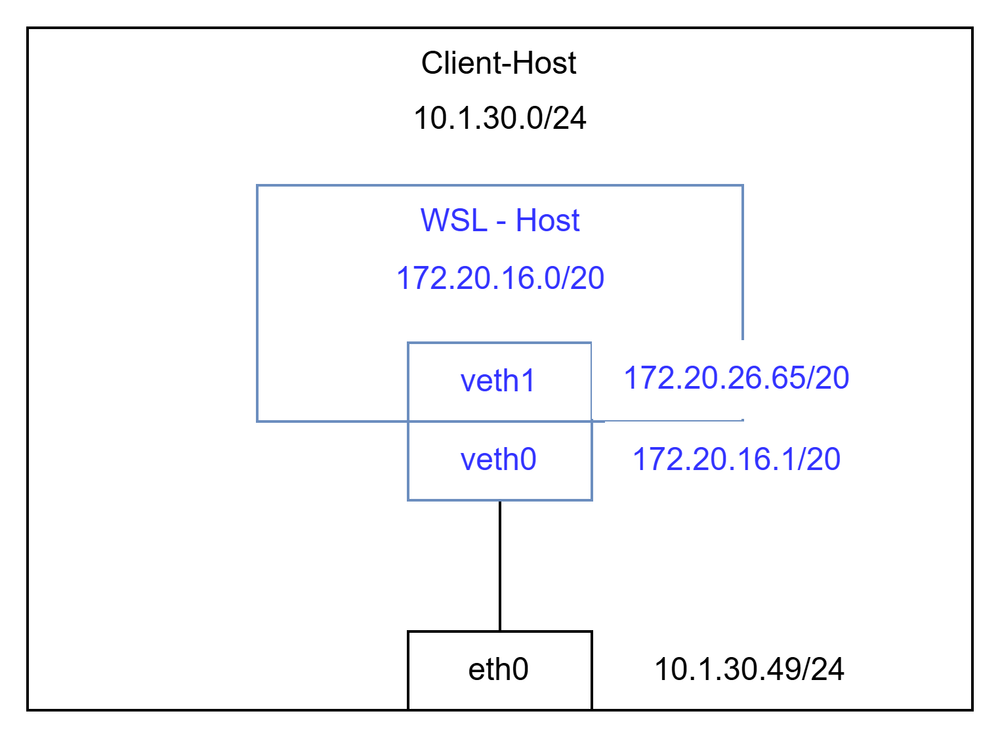
Figure 1. WSL Network Configuration Diagram
Consequently, communication from the Windows host to the WSL host at 172.20.26.65 occurs via veth0, and the routing table is configured to forward traffic for the 172.20.16.0/20 CIDR to veth0.

Figure 2. Ping test screen between Windows host and WSL host
Step 3. Let's configure the AWS VPC and test environment.
Create a VPC using the 172.20.0.0/16 subnet and create an EC2 instance using the same IP as WSL.
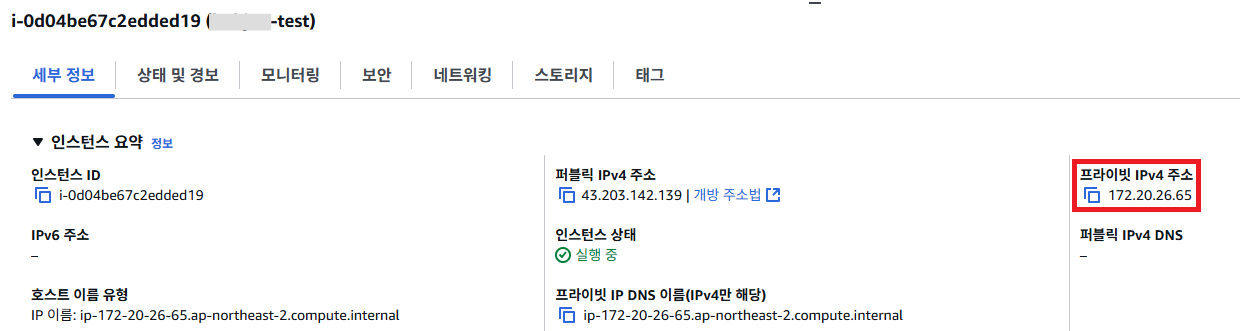
Figure 4. EC2 instance created with the same IP as WSL
Step 4. Configure AWS Client VPN
Configure the Client VPN by referring to the Getting Started with AWS Client VPN - AWS Client VPN documentation.
Step 5. Disable Path Enforcement
If configured using the default settings from Step 3 documentation, Path Enforcement is disabled. Proceed to connect using the AWS VPN Client program in this state.
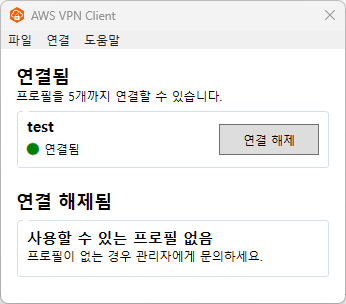
Figure 5. Successful connection via AWS VPN Client
Check the routing table using the following command in the Windows cmd window.
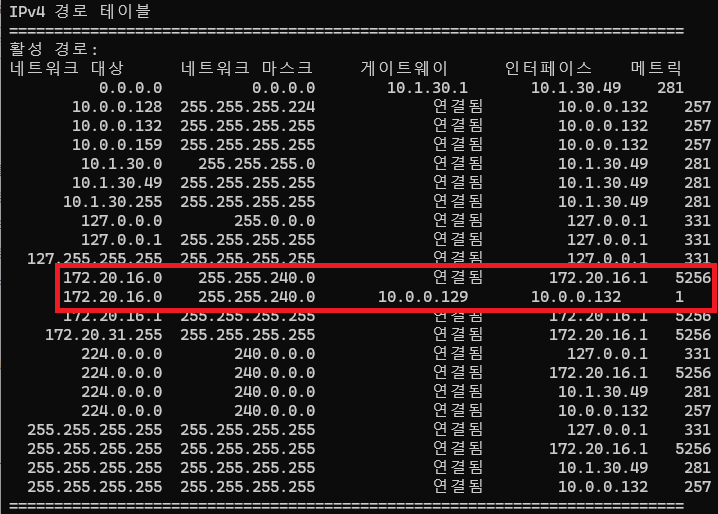
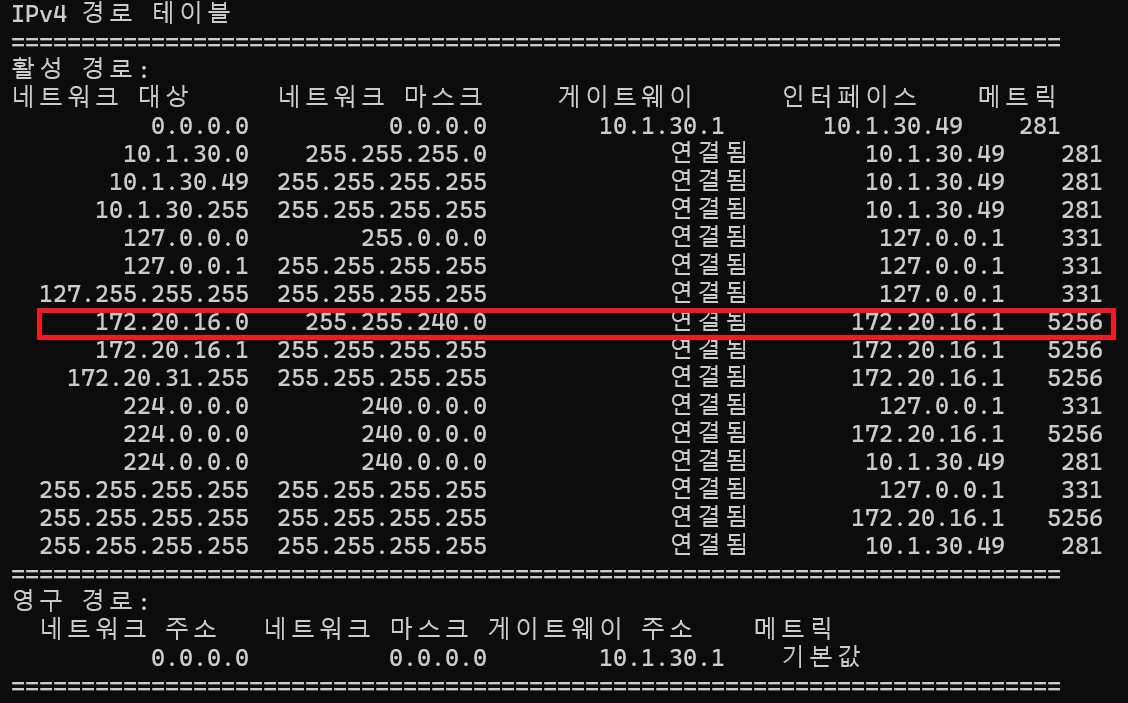
Figure 6. Client routing table with path enforcement disabled
As shown in Figure 6, routing is applied because the network used by WSL overlaps with the AWS VPC network range. Based on the metric value, client requests destined for 172.20.16.0/20 are prioritized to go through the AWS VPC.
So, what happens if we delete the route pointing to the AWS VPC Client to force traffic destined for the 172.20.16.0/20 range to go through the WSL network instead of the AWS VPC?
Let's remove the Client VPN route using the command below.
route delete 172.20.16.0 mask 255.255.240.0 10.0.0.129
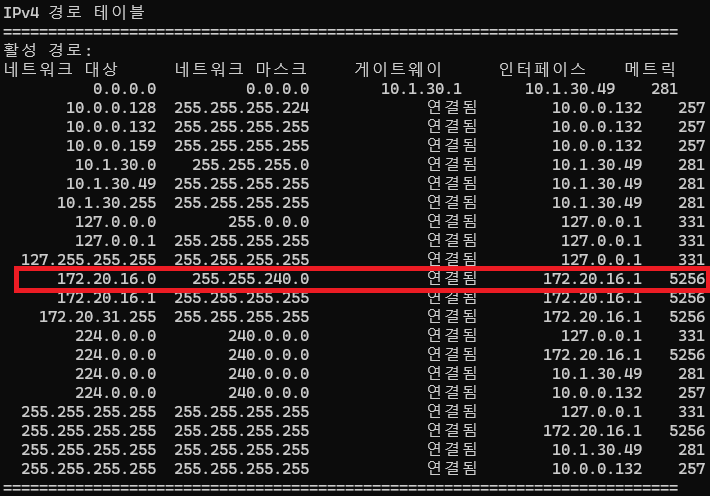
Figure 7. AWS Client VPN route removed
The AWS Client VPN route has been removed as intended by the client user.
In this state, if communication is requested to 172.20.16.0/20, the request is sent to the network used by WSL.
This demonstrates that disabling route enforcement allows users to manually manage the routing paths used by AWS Client VPN.
Step 6. Enable Client Route Enforcement
This time, we'll enable client route enforcement and then manipulate the routing table.
AWS Console > VPC > Virtual Private Cloud > Client VPN Endpoint > Select > [Actions] > Click Edit Client VPN Endpoint, enable “Client Route Enforcement”, then save.
Once the changes are applied, reconnect the AWS VPN Client. Verify the route using `route print` in the cmd window.
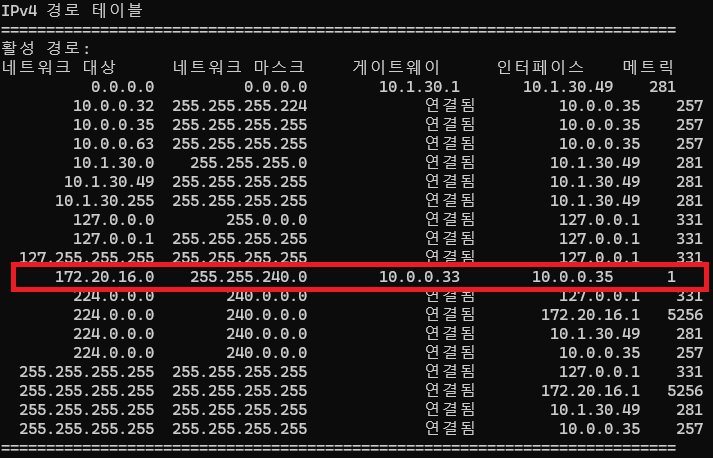
Figure 9. WSL routes disappear due to duplication, leaving only the AWS Client VPN subnet routes visible
Unlike before, the routes for the 172.20.16.0/20 subnet used by WSL have disappeared, and only the AWS Client VPN subnet routes are now visible.
Now, let's delete the AWS Client VPN routing on the client using the command below and verify the changes.
route delete 172.20.16.0 mask 255.255.240.0 10.0.0.33

Figure 10. The path automatically restored even after the user intentionally deleted the ClientVPN path
Surprisingly, you can see that the same path has been automatically recreated with one additional metric. (Integrity maintained)
Enabling forced client routing during AWS Client VPN configuration ensures that settings defined by administrators in the AWS console are consistently applied to end users, maintaining your organization's connection integrity.
🤚 This goes beyond simply saving settings; it automatically restores the original state even if the route changes on the actual user device, allowing administrators to maintain a consistent network environment.
🤚 For enterprises and organizations, this makes it a powerful security tool, ensuring that security controls via VPN remain unbroken and maintained even in remote work environments.
'🐳AWS' 카테고리의 다른 글
| Amazon S3 Console, Show Summary of External Access for All Buckets (0) | 2025.11.14 |
|---|---|
| Monitoring Network Firewalls Using the AWS Network Firewall Dashboard (0) | 2025.11.08 |
| AWS Lambda Meets the Latest Ruby 3.4! (0) | 2025.10.20 |
| Migrating Amazon ECS to Spot Ocean (1) | 2025.08.14 |
| Accessing and logging private network EC2 instances with AWS IAM (2) | 2025.08.05 |


